Send vendor payments from Dynamics F&O
After you add a new invoice to the , the invoice can be sent to Corpay Cross-Border directly from Dynamics F&O. Once the invoices are sent to Corpay Cross-Border, they can be processed like any other payment file.
Important: Select the correct , bank , and when adding a new transaction to successfully process the payment in Corpay Cross-Border. The should be same as the bank account set up by the client.
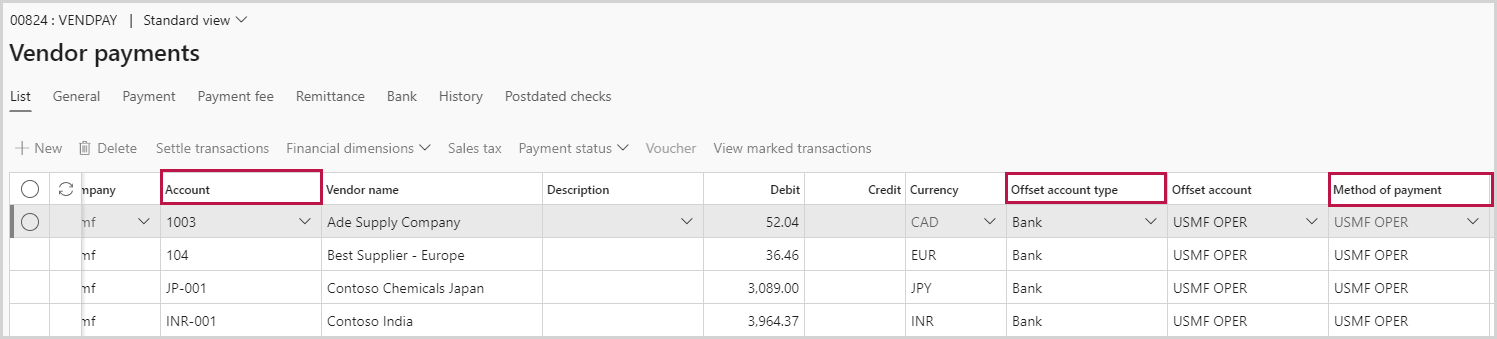
Send Vendor payments to Corpay Cross-Border
- After you add the invoices, click .
Note: All invoices in the journal will be sent to Corpay Cross-Border.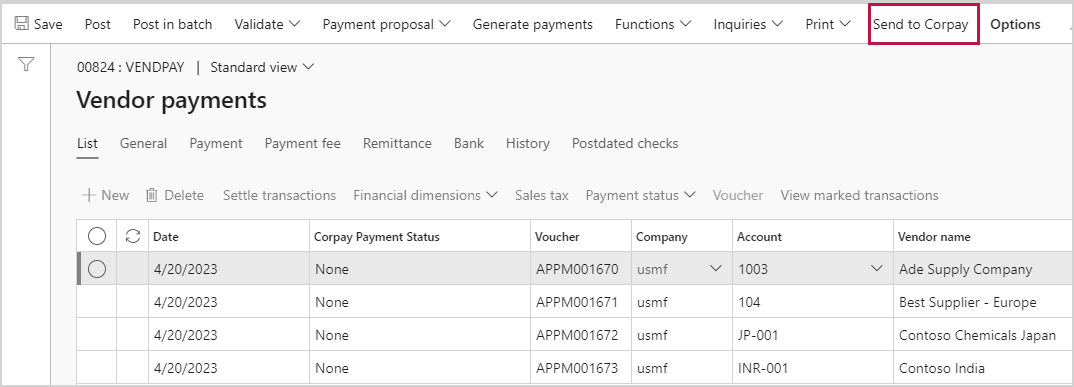
Important: If the is enabled in Dynamics F&O, the authorized approver will have to review and approve the Vendor payment journal before sending it to Corpay Cross-Border. - On successful upload, you will see a message at the top of the page that lets you know that the file has been successfully uploaded and the status in the column will update to .
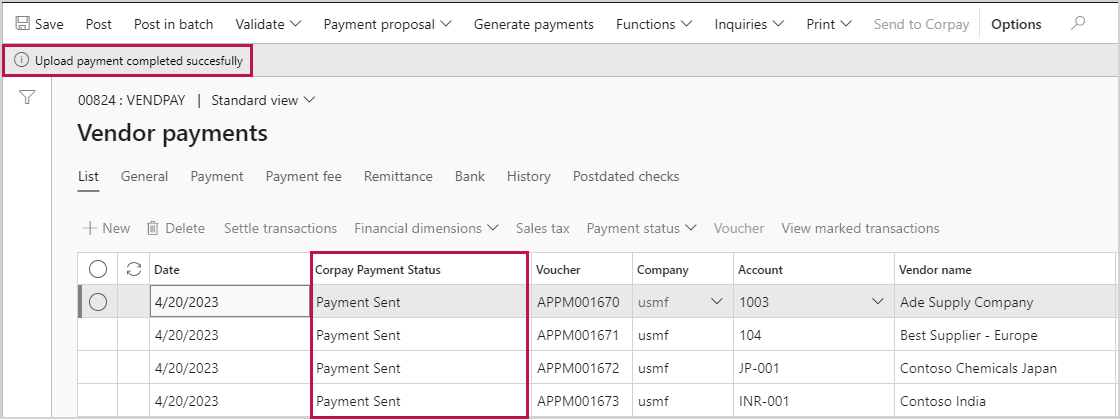
Note: You cannot re-send payments or add new invoices to a processed journal. A warning message will appear.